Shape each section, then generate a first draft from it.
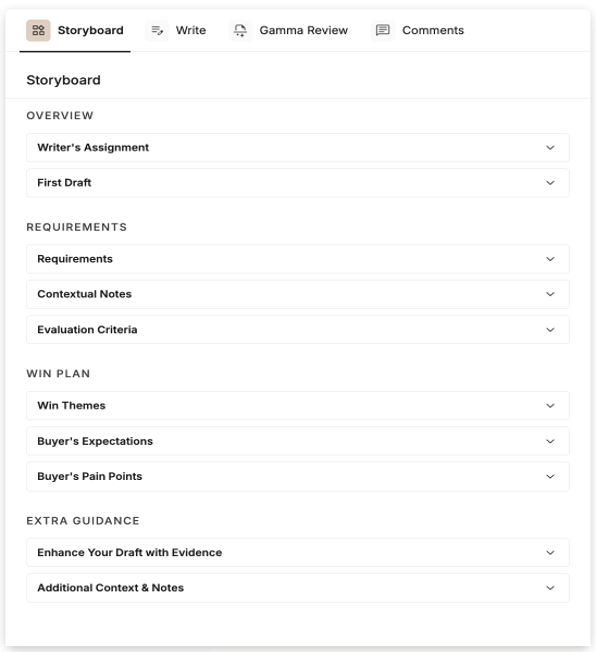
The Storyboard is where you plan a section before drafting – the requirements, notes and instructions that guide the response. From it, you generate a first draft that opens in the Editor. It works the same way in the Smart Questions and Smart Requirements workflows.
Prepare the storyboard
- Open a section's storyboard and review the mapped requirements and notes.
- Add your writer's instructions and any win themes for the section.
- Set a word count if you need one.
Generate the first draft
- Select 'Generate first draft' – it builds from the storyboard and opens in the Editor.
- Refine the draft, and check the sources it used.
- Regenerate a section if you change its storyboard.
Get better results
- The clearer your instructions and win themes, the stronger the first draft.
- Generate one section at a time for large or complex bids.
- If a draft comes back shorter than your word count, use the Editor's Expand option to build it up.
If something isn't working
- 'Generate first draft' fails: try again, clear your browser cache, and generate section by section for large bids.
- A section's storyboard is empty: sections you added yourself don't pull in requirements automatically – add them by hand.
- No sources are shown on the draft: refresh the page, and if they're still missing, contact Support.
If you need a hand, get in touch with our Support team.